Loops
Two different tools share this corner of the Practice Hub — a library of backing tracks, and a slow-it-down trainer for a passage you're stuck on. Here's how to tell them apart and use each one.
"Loops" means two different things in Drum Buddha, and they sit right next to each other in the Practice Hub. The Loops tile is a library of prewritten backing tracks — blues, jazz, rock, funk, that kind of thing. The Loop Trainer featured card is the classic drill tool: take a hard passage, loop it, slow it down until your hands catch up. They don't do the same job, and neither replaces the other.
The Loops tile and the Loop Trainer card are two separate tools that happen to live near each other on the Practice Hub screen. Loops gives you something to play along with. Loop Trainer gives you a way to drill a specific slice of audio, slower than real time. If you tapped one expecting the other, this page covers both.
Loops: the backing-track library
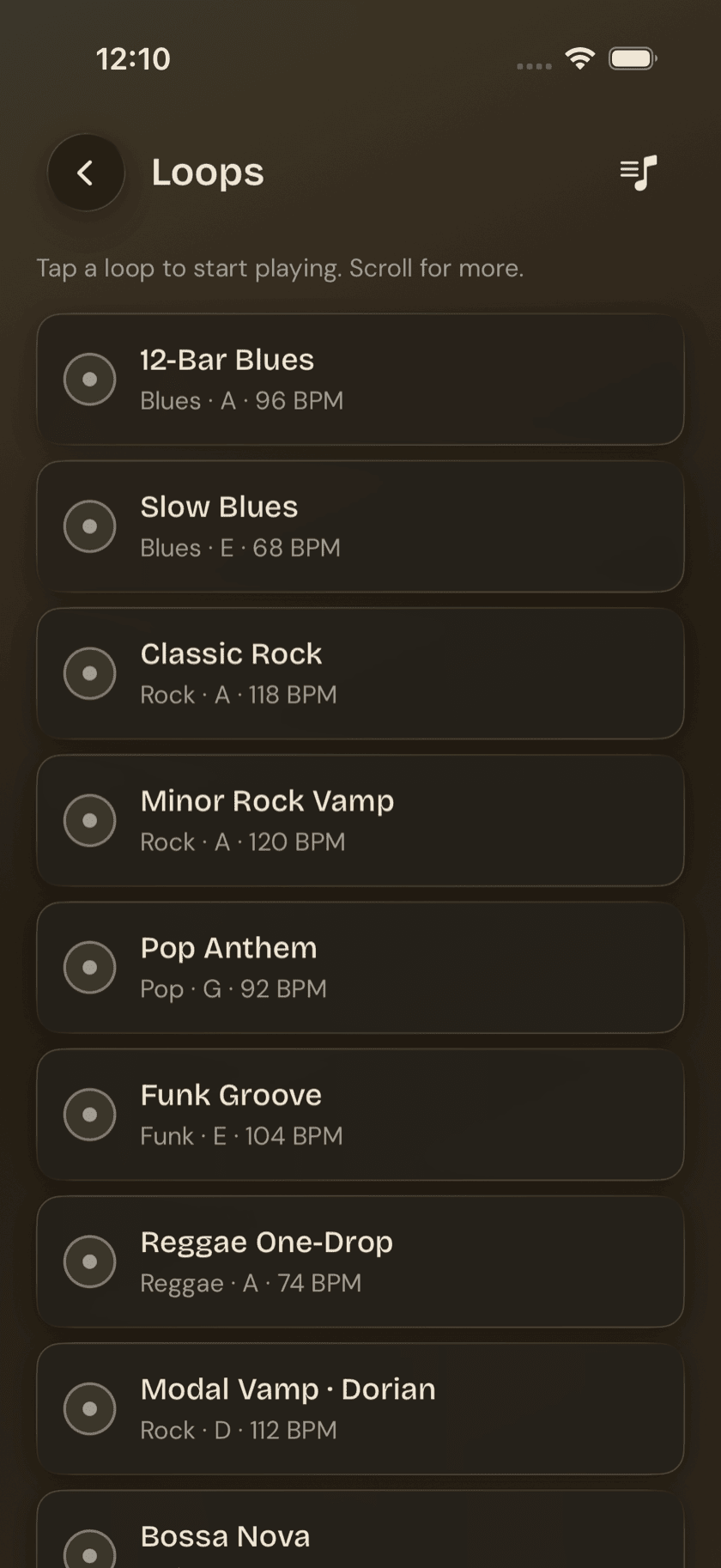
Tap the Loops tile and you get a list of bundled backing tracks, stored locally on your device — real prewritten mixes, not something you build yourself. Before you've browsed anything, the empty state spells it out plainly: Loops are backing tracks stored locally on your device — blues, jazz, rock, funk. Browse and add the ones you want to practice with.
Each row in the list shows three things at a glance: category, key, and BPM. Enough to know what you're getting into before you tap it.
Opening a loop
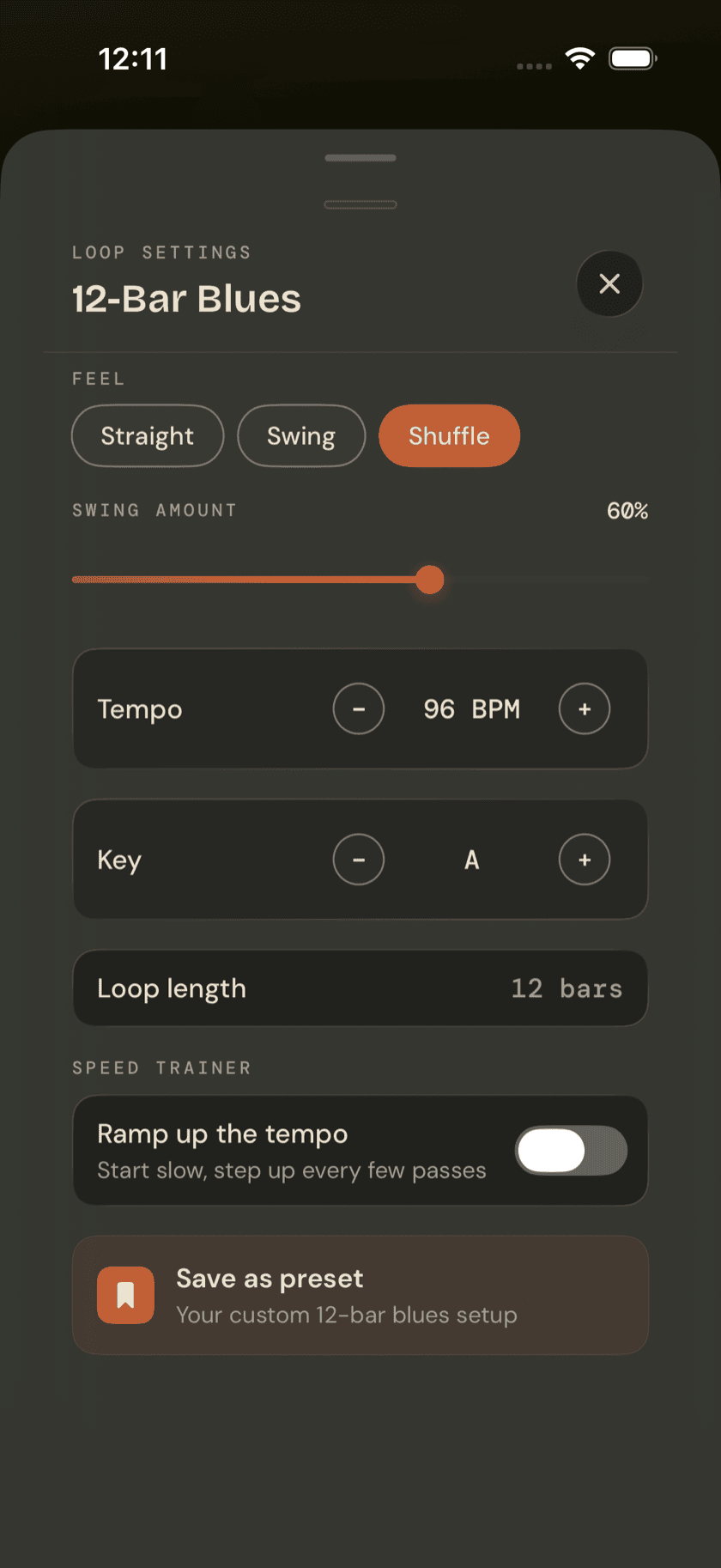
Tap a loop and you land on a playback screen with standard transport controls, plus a gear icon that opens its settings sheet. That sheet is where most of the actual practice tools live:
- Feel — straight, swing, or shuffle, with a swing-amount slider once you pick swing or shuffle.
- Tempo and key steppers — nudge either one up or down from the loop's default.
- Speed trainer — set a starting percentage, a step size, and how many passes to play at each step before it ramps up. Practice slow, let it climb on its own schedule, land at full speed without touching anything mid-run.
Recording: take vs. share
Two record buttons live on the loop screen, and they do different things.
Record a take turns on the mic and captures you playing along with the loop. That recording is saved as a take — it's about you, on top of the backing track.
Record loop to share is separate, and it doesn't use the mic at all. It exports the full mix — the backing track itself — to a file you can share. One captures your playing; the other captures the loop.
Your setups
If you land on a tempo, key, feel, and swing combination worth keeping, save it. Named custom setups show up under Your setups, and you can rename, reorder, or delete them from there. Handy if you've got a handful of loops you return to often, each dialed in a little differently.
Loop Trainer: slow it down
Loop Trainer is the other tool in this corner of the Practice Hub, and it's not a backing-track library at all. It's the classic loop-and-slow-down drill, and it works on two different sources: a recording of your own idea, or an audio file you import through the Files picker. Imported files land in a local shelf called the Woodshed.
Either way, you set A/B trim points directly on the waveform to mark the slice you want to drill, then loop it at one of three speeds: 0.5×, 0.75×, or full speed.
The app describes the two paths like this: Pick a recorded idea, set the A/B points, and drill that slice on repeat — slowed down, then up to speed. And for imports: Import a song, set the A/B points, and loop the hard bar — slowed down until your hands own it.
Sit down and play.
Learn grooves, capture ideas, jam with a live band, and keep time — free, local-first, on iPhone, iPad, and Mac.
Explore Drum Buddha →