Getting Started
Everything you need before you sit down with the app for the first time — how it's laid out, what the first-run setup covers, and how to find anything once you're in.
There's no dashboard to check, no streak to protect, no level to grind. Drum Buddha has one job: get you from I should probably practice to actually playing, as fast as possible, and then stay out of the way.
This page covers the basics — the tabs, what happens the first time you open the app, and how to find anything once you're in. If you're looking for something specific — a groove, Pulse, Jam — the rest of the guide is one click away from every page.
What Drum Buddha is for
Drum Buddha is built around four things: learning a groove, capturing an idea before it disappears, working on your playing deliberately, and just sitting down and playing. The onboarding flow names them outright — Learn a groove, Capture an idea, Practice, or just Play — and everything in the app sits under one of those four doors.
What it isn't: a habit tracker. There's no streak counter, no daily goal, no badge guilting you back in. The welcome screen says as much directly — No streaks, no goals — just the grooves and the time you spend with them — and it means it.
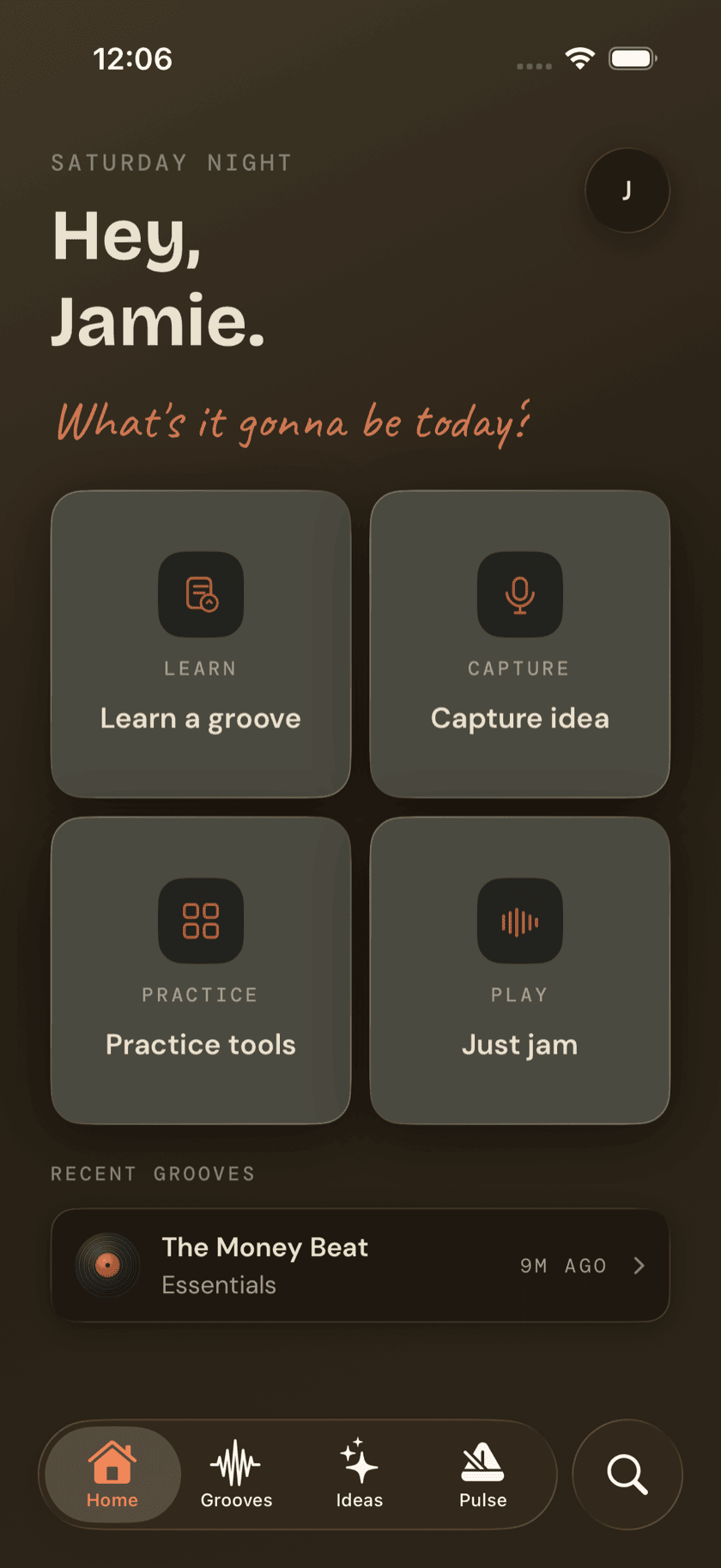
The app is organized around five tabs, plus two places you drop into rather than live in:
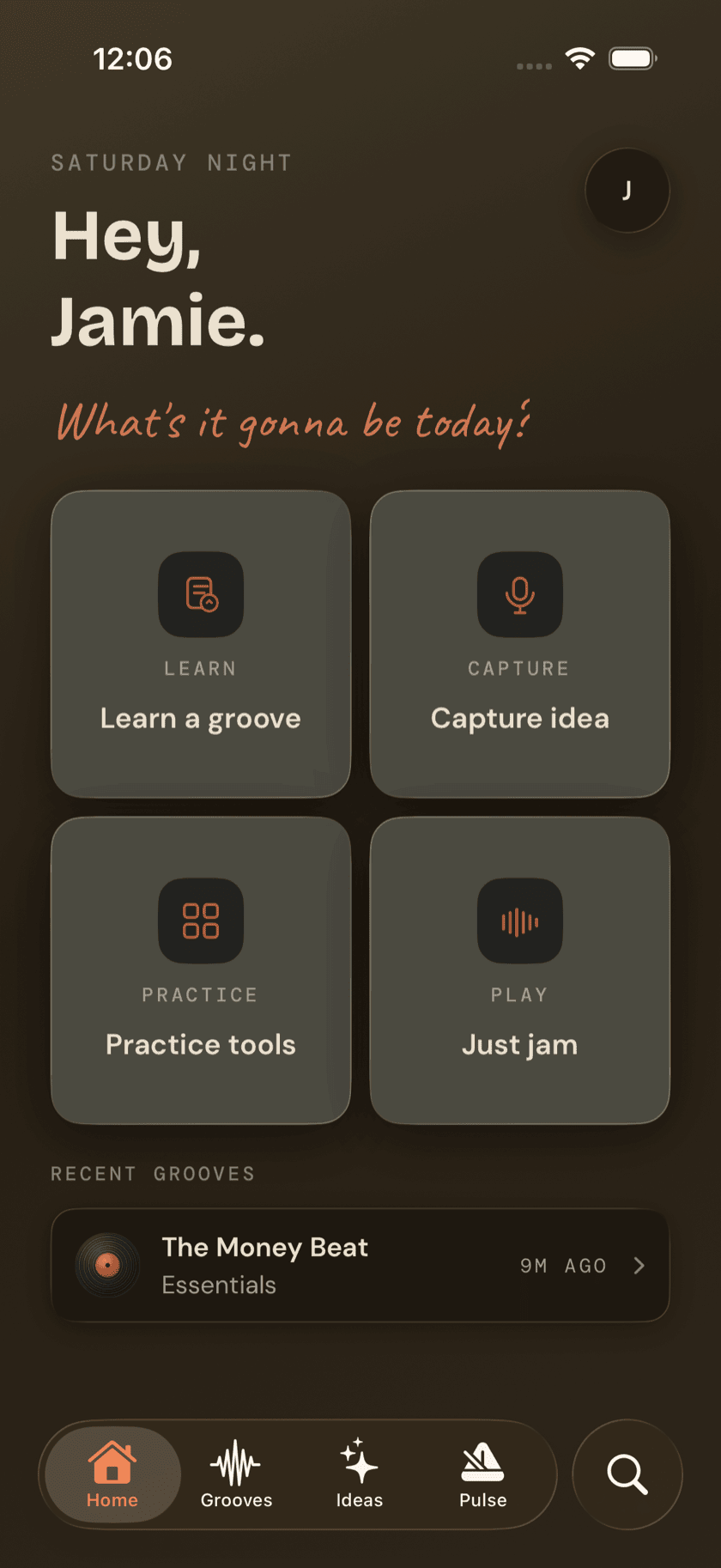
- Home — your landing page. A greeting, four action cards, and your recently played grooves.
- Grooves — the pattern library. Tap Learn a groove on Home and this is exactly where you land.
- Ideas — the junk drawer for beats, voice memos, and stray thoughts, kept apart from Grooves on purpose.
- Pulse — Drum Buddha's metronome, and the tab you'll probably open more than any other.
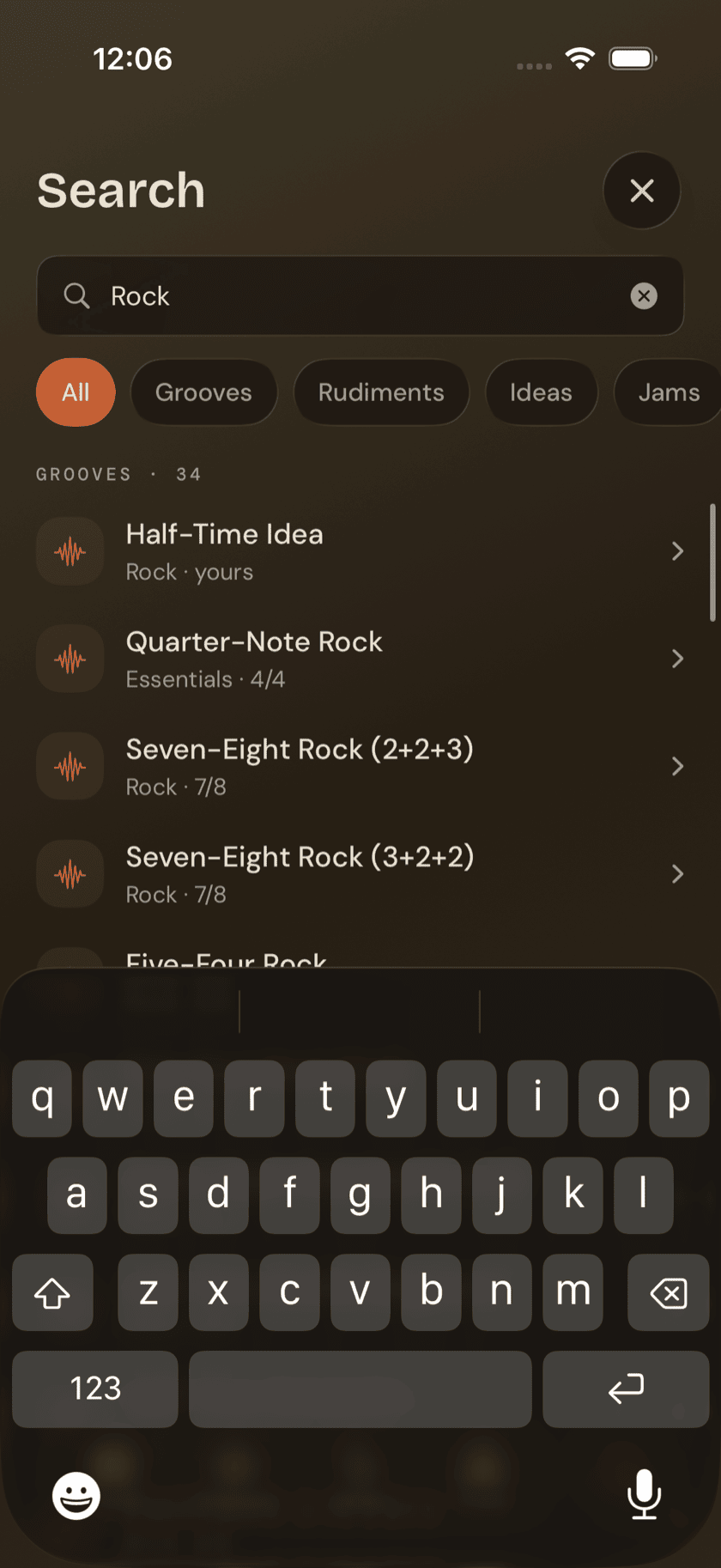
- Search — the magnifying-glass tab. One box, everything in the app.
Two more things live outside the tab bar because they're full-screen experiences, not places you browse: Jam, the live backing-band session where you're the drummer, and the Practice Hub, home to every structured practice tool. Both open from Home's action cards.
Tapping Learn a groove doesn't launch a flow or a modal. It just switches you to the Grooves tab, landing on the plain library with nothing pre-selected — you browse from there like you would any other time.
Setting up your space
The first time you open Drum Buddha, you'll go through a short setup — seven screens, one decision each.
1. Welcome. The app introduces itself: Your Practice Space. / Your flow. — followed by a plain statement of intent: Learn a groove. Capture an idea. Sit down and play. No streaks, no goals — just the grooves and the time you spend with them. One button, Let's set up.
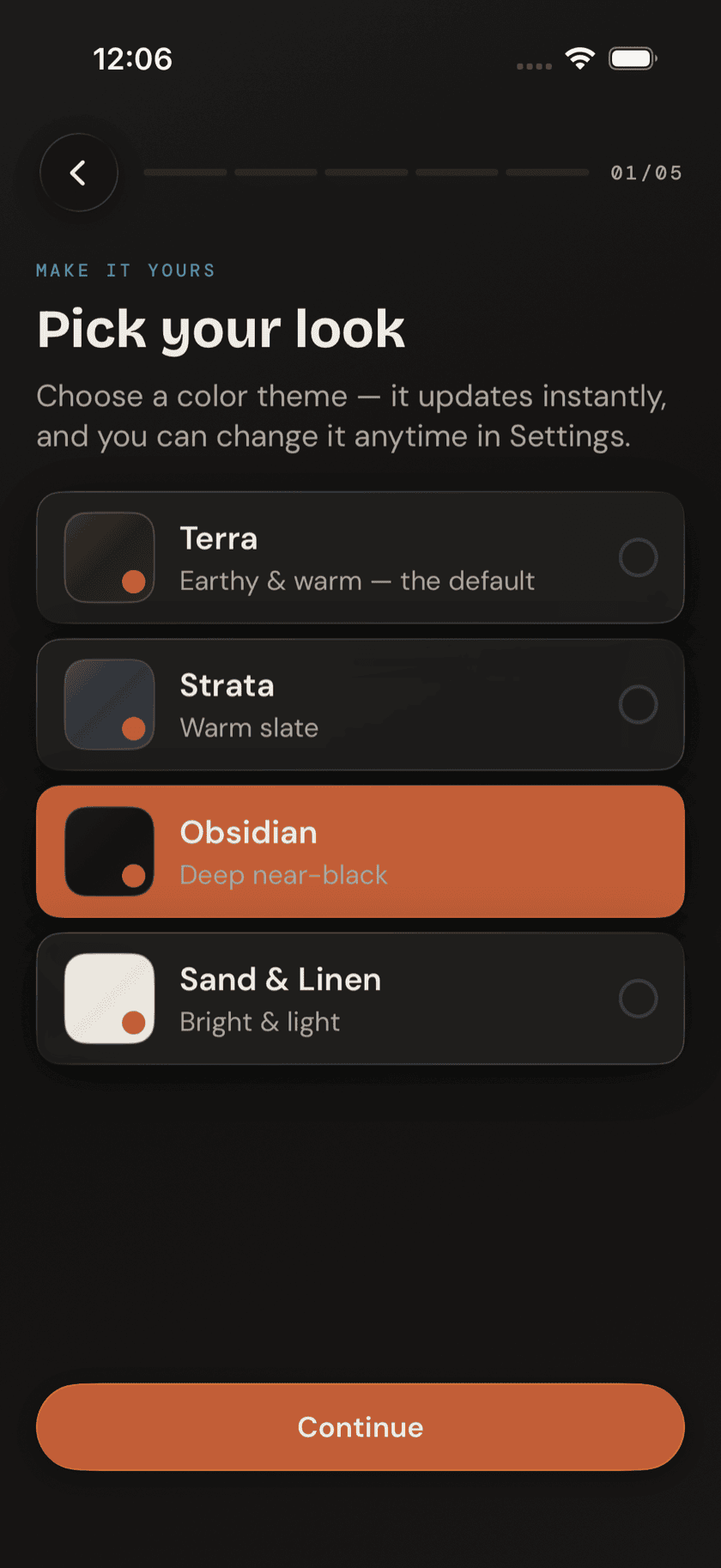
2. Theme. Pick your look. Choose a color theme — it updates instantly, and you can change it anytime in Settings. Terra, a warm dark theme, is the default; Strata, Obsidian, and Sand are also on offer.
3. Name. What should we call you? Just a first name — We'll use it on your home screen — nowhere else. A live preview shows exactly how Home is about to greet you: Hey, Jamie.
4. Level. Where are you at? Beginner, Intermediate, Advanced, or Returning — for players picking the sticks back up after time away. The app is upfront that this isn't a test: No judgment — this just helps us tailor suggestions. You can change it later.
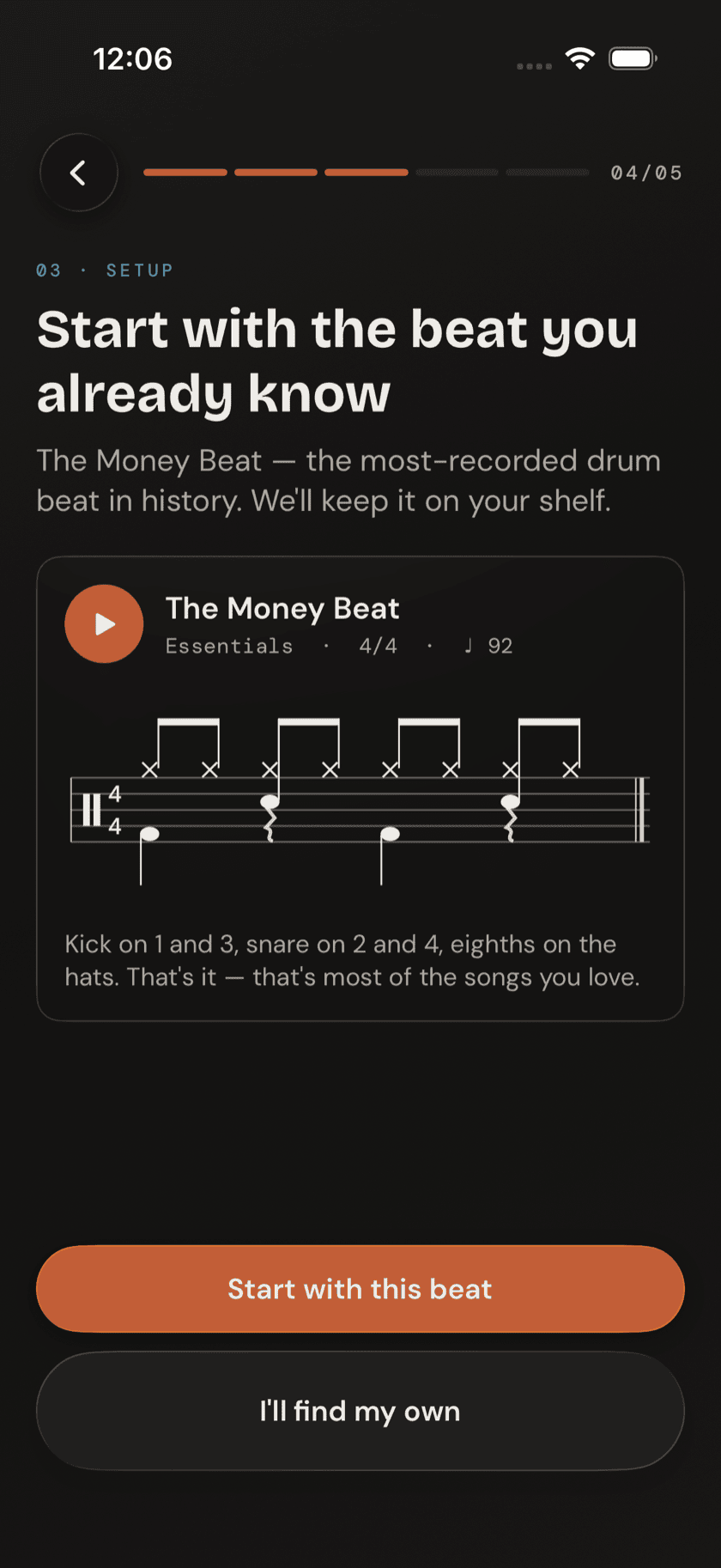
5. First groove. Start with the beat you already know. The app offers up the Money Beat — the most-recorded drum beat in history — and shows its actual notation right there, with a playable preview: kick on 1 and 3, snare on 2 and 4, eighths on the hats. The caption puts it plainly: Kick on 1 and 3, snare on 2 and 4, eighths on the hats. That's it — that's most of the songs you love. Tap Start with this beat and it's favorited onto your shelf, the app opening straight to it; tap I'll find my own and onboarding moves on with nothing favorited. Genuinely optional either way.
6. Microphone. Can we listen in? The app explains why it wants access — The mic powers capturing voice ideas and recording your takes — and is specific that audio stays on your device unless you choose to share it. Then it triggers the real iOS permission prompt.
The button just reads Continue, not Allow or Skip, because it advances no matter what you choose in the actual permission prompt behind it. There's nothing left to skip.
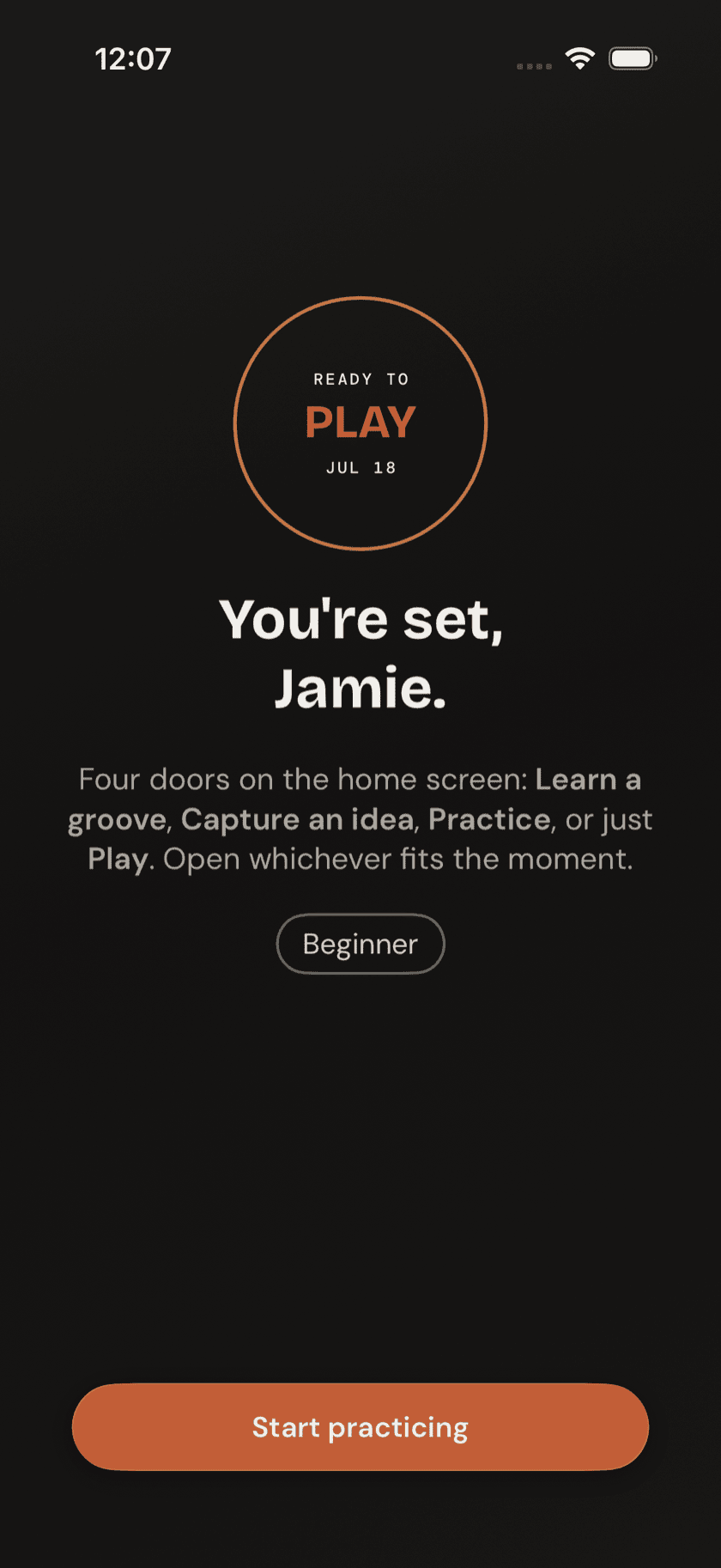
7. Done. You're set, {name}. — followed by a plain rundown of the four doors on the home screen: Learn a groove, Capture an idea, Practice, or just Play. Open whichever fits the moment. One button, Start practicing, drops you straight onto Home.
A tour of Home
Home's greeting changes with the time of day — a small eyebrow line like Tuesday Morning, then either Hey there. if you skipped the name step, or Hey, {name}. if you didn't — under a small handwritten-style line that asks What's it gonna be today?
Below that, four cards, one tap each:
| Card | Opens |
|---|---|
| Learn a groove | The Grooves tab, plain library, nothing pre-selected |
| Capture idea | Getting an idea down — audio or a note — before it's gone |
| Practice tools | The full Practice Hub, full screen |
| Just jam | Jam, full screen, no setup screen |
Underneath the cards, Recent grooves lists whatever you've most recently played. Before you've played anything, it shows a plain empty state instead: Nothing recent yet. / Play a groove and we'll keep it here for you.
Finding anything, fast
The rightmost tab — the magnifying-glass bubble — searches everything in the app at once: your grooves, your ideas, your recorded takes, the works. One box, no separate search screens to remember.
Sit down and play.
Learn grooves, capture ideas, jam with a live band, and keep time — free, local-first, on iPhone, iPad, and Mac.
Explore Drum Buddha →