Jam
The band plays, you drum — Jam runs backwards from the rest of the Buddha family, and it's built entirely around your hands doing the work live.
Jam works differently here than it does anywhere else in the Buddha family. In Guitar, Ukulele, and Bass Buddha, Jam gives you a backing band and you play your instrument over it. In Drum Buddha, you are the drummer. Bass and keys are the band. You supply the groove, live, with your own hands — and none of it exists until you hit Record.
That's not a missing feature. It's the whole idea.
You're the drummer, not the audience
There's no groove picker on this screen. No drum notation. No visual kit to follow along with. Jam is entirely freeform — the app puts it plainly: you're the drummer — the app is the band. Bass and keys vamp a style-matched progression in your key and tempo. You press play, the band starts immediately, and you play over it.
The only nod to "drums" anywhere on the screen is an optional guide click — a quarter-note metronome pulse, accented on beat 1.
The guide click is off by default, and it isn't a pattern suggesting what to play. It's a rail to lock onto if you want one, nothing more.
Starting a session
Jam opens already playing. No countdown, no setup screen — the moment you're on the screen, the band is already going.
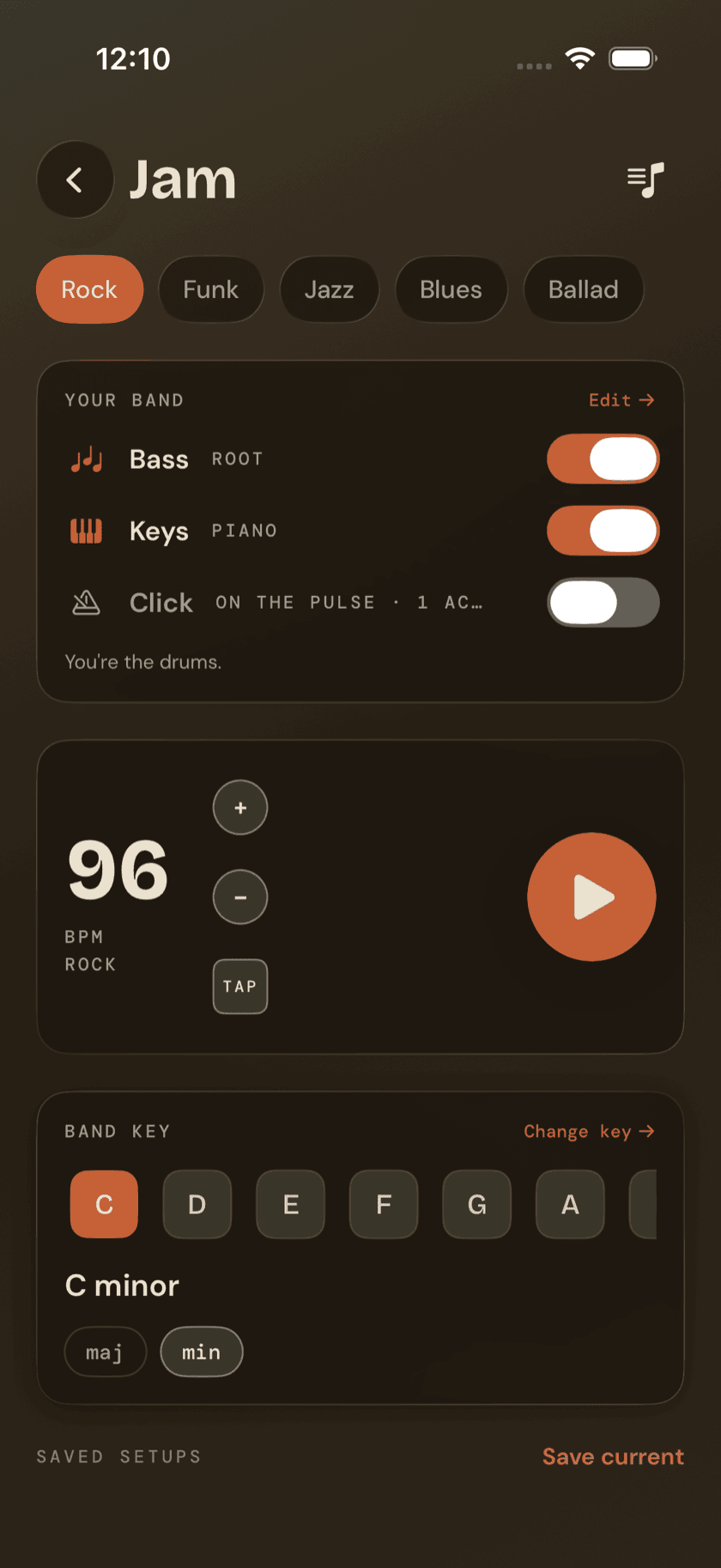
A row of style pills sits near the top: Rock, Funk, Jazz, Blues, Ballad. Tap one mid-session and the whole band re-fits around it — not just the feel, but the chord progression itself switches to something style-matched.
Picking a key
Key and mode aren't buried in a settings menu — they're front and center on the main screen. An inline key card lets you pick from the 7 natural notes plus a major/minor toggle without leaving the screen.
Need something outside those 7 — a sharp or flat key? Tap Change key → and a full picker sheet opens with all 12 chromatic keys. A preview footer spells out exactly what you're choosing: THE BAND PLAYS IN {key} — bass + keys vamp here, you keep the time.
The band editor
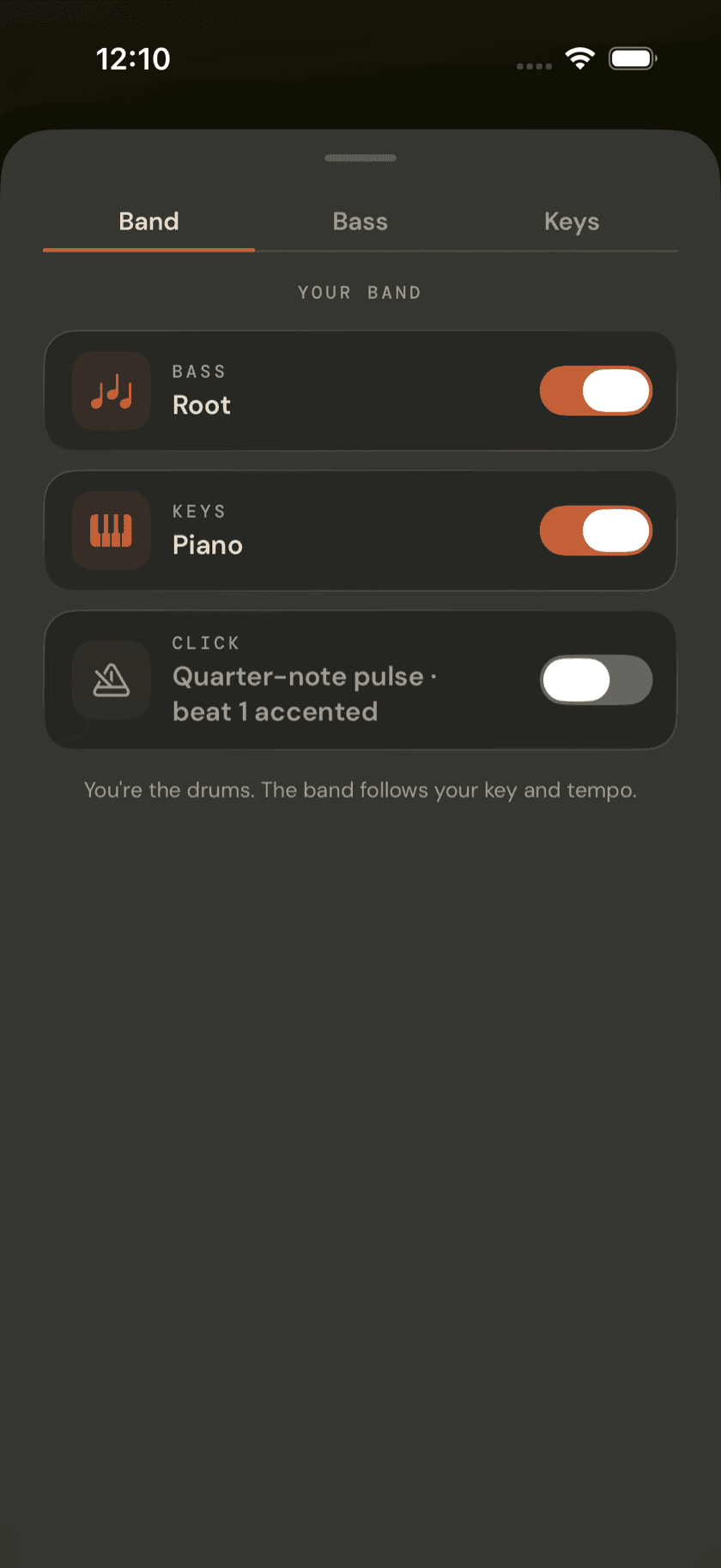
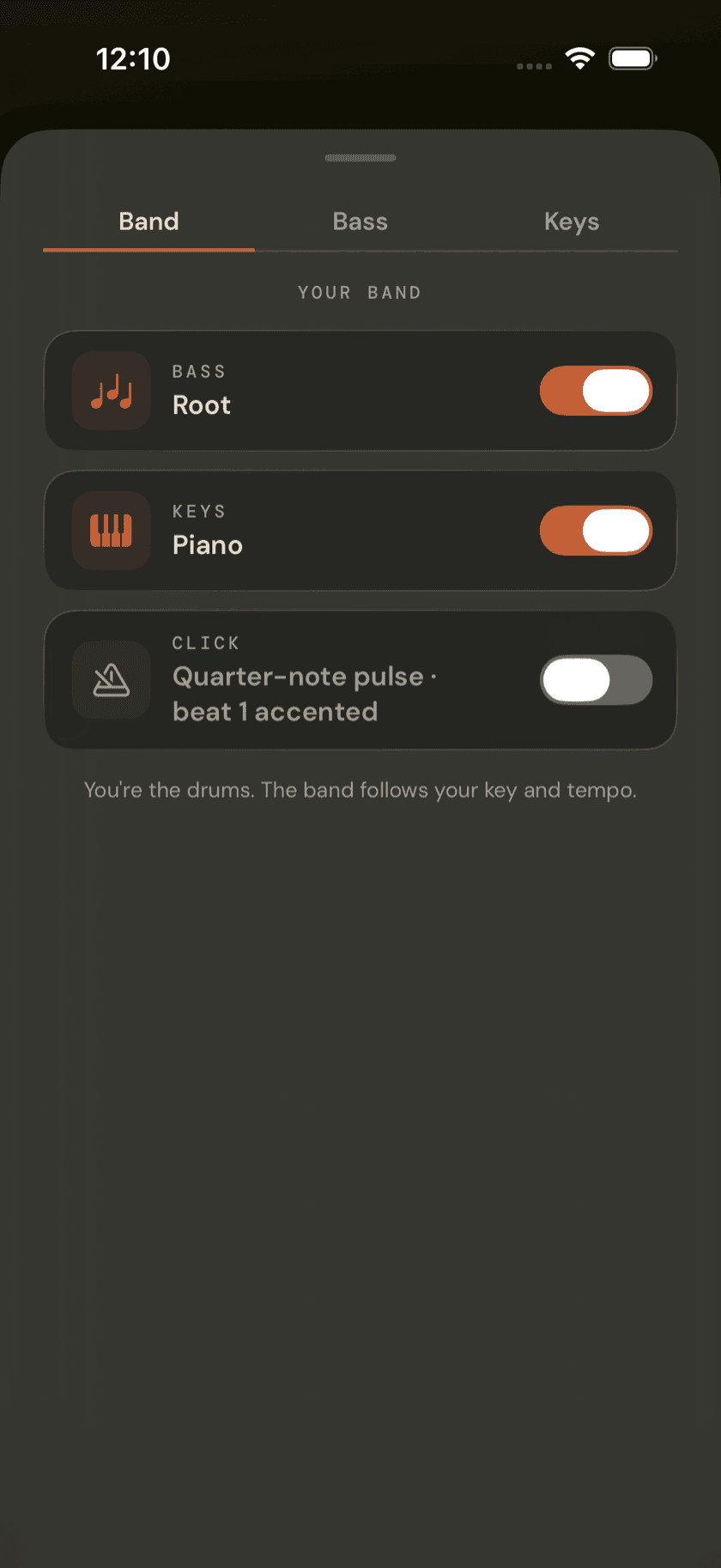
The editor has three tabs: Band, Bass, Keys.
The drummer is you. There's nothing to configure on the drum side because there's no drum side — "the drummer IS the drums" is the entire premise of this screen.
Band is the overview — on/off toggles for Bass, Keys, and Click, each one showing its current style at a glance.
Bass picks a bass style: Root ("Root note on the downbeat, clean foundation"), Walking ("1-3-5-1 across the bar, more movement"), or Boogie ("1-3-5-6-♭7 on every 8th, bluesy shuffle drive"). Below that, a feel — Straight, Swing, or Shuffle — with a swing-amount slider, and a read-only 8-step preview showing which eighth-notes the bass will actually hit.
Keys picks a voice — Piano, Organ, or Pad — and a pattern: Stab ("Hit on beat 1, release, punchy") or Sustain ("Hold the chord, pads feel best"). Underneath, the live chord progression shows as a row of pads, one per bar, and whichever bar is currently sounding lights up as it plays.
Recording your take
Recording is separate from playing. The band starts the moment you open Jam either way; nothing gets captured until you hit Record.
By default, a 3-2-1 count-in gives you a bar to get ready — it's toggleable if you'd rather skip straight in. Once it starts, the mic captures the room: your drums and the band coming out of the speaker, naturally balanced together. The band audio is never routed back out, so there's no feedback loop to worry about.
Takes under 2 seconds get discarded automatically, with a toast telling you so — a false start doesn't clutter your library. Everything else gets named for you — something like Rock · C major · take 3 — and lands in its own Jam recordings list, reachable from a button in the header. It's kept separate from the Ideas tab on purpose; a jam take and a captured idea aren't the same kind of thing.
Performance Mode
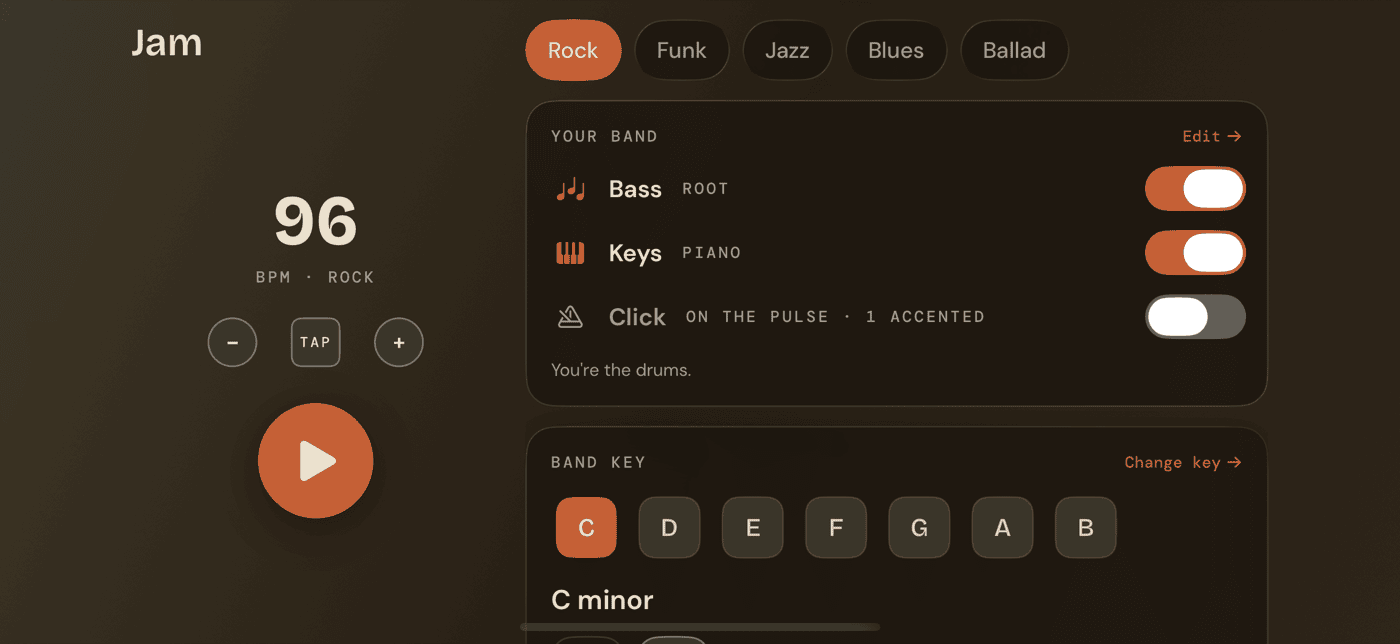
Rotate to landscape on iPhone, or open Jam on iPad already in landscape, and the layout switches to a hands-free performance view. A left rail holds BPM, tempo controls, tap tempo, and the play button; once you're playing, the record control and an End-session button join it. The right side scrolls through the style pills, the band card, and the key card.
It's built for propping the device on a stand and playing without touching the screen at all.
Getting out of Performance Mode depends on the device. On iPhone, rotate back to portrait. On iPad, there's no equivalent gesture, so a back-chevron sits on screen instead.
Exporting and saving setups
Want just the backing track — no mic, no drums — as a file you can share? Jam can export the bass-and-keys track on its own, separate from recording yourself. Useful for practicing outside the app, or handing a backing track to someone else entirely.
If you land on a style, key, tempo, and band combination you want back later, save the setup and recall it by name instead of rebuilding it from scratch every time.
Sit down and play.
Learn grooves, capture ideas, jam with a live band, and keep time — free, local-first, on iPhone, iPad, and Mac.
Explore Drum Buddha →